

17 sep 2026
Most email services limit the size of attachments, making this a common problem with PDFs, photos, videos, and audio files. Gmail, for example, allows up to 25 MB in attachments for personal accounts. If your files exceed that limit, Gmail automatically adds them as a Google Drive link instead.
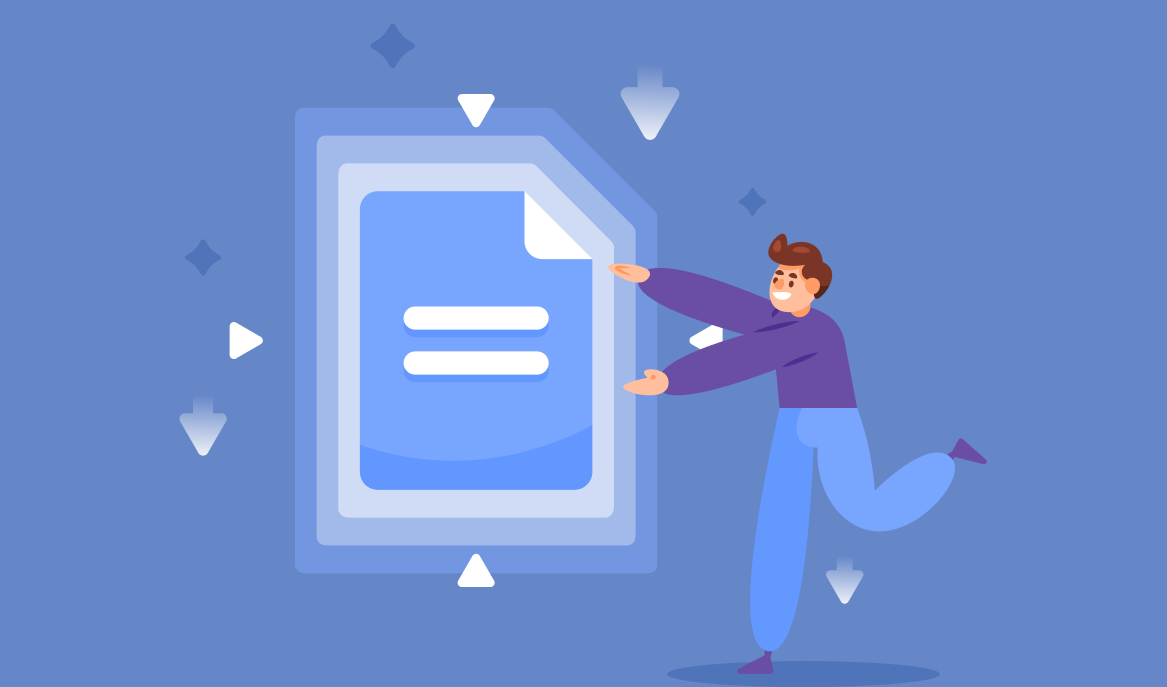
Cloud storage is one workaround, but compression is more convenient when you want to send the file itself, since it can get you under the attachment limit while using less storage space.
Quick answer: The best way to send a large file via email depends on the file type. PDFs can be compressed with a PDF compressor or tools like iScanner, while images, videos, and audio files can be resized or exported at lower quality settings. If a file is still too big after compression, sharing it through cloud storage is usually the way to go.
Here’s how to compress each file type before sending it.
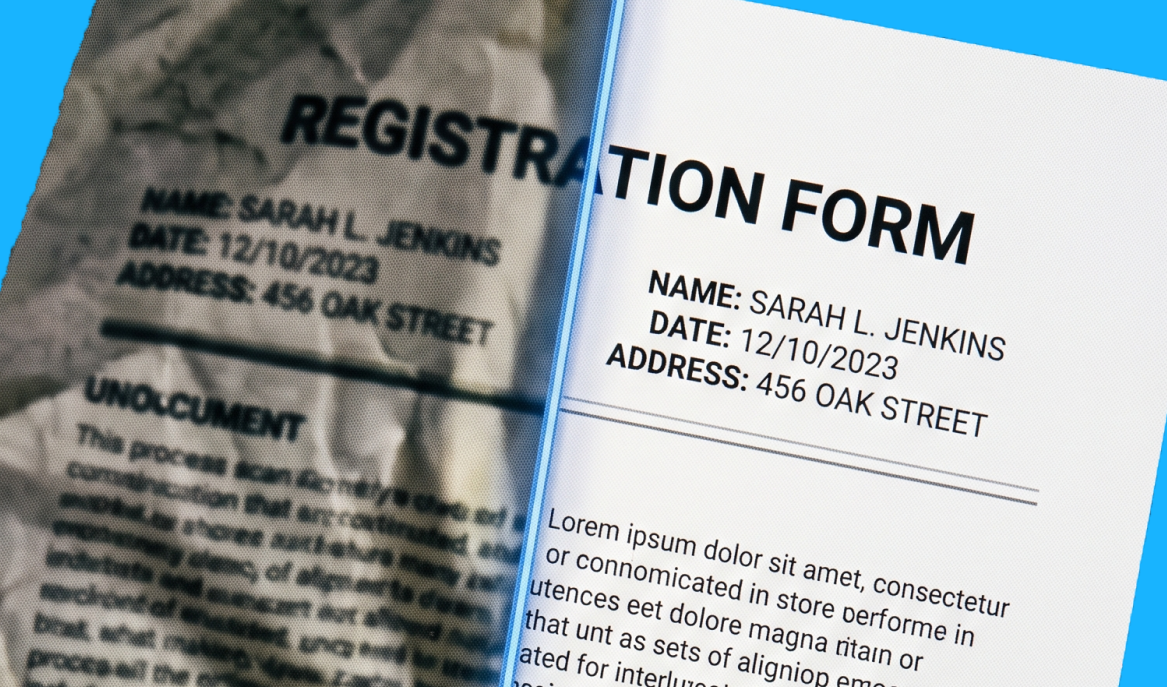
Scanned PDFs can balloon up when they contain high-resolution images, color pages, or lots of pages. Compressing them before sending can reduce the file size, but stronger compression can also affect image quality.
The right method depends on your device and how small you need the PDF to be.
A solid choice for compressing PDFs on an iPhone is iScanner. The app lets you choose between three compression levels, so you can balance file size and document quality depending on what you’re sending.
You can also send the compressed PDF via email directly from the app, so there’s no need to switch between a separate compressor and your email client.
Here’s how to compress and send your PDF with iScanner:
Higher compression creates a smaller file, while lighter compression preserves more of the original quality. Optimal (50%) is a good starting point for everyday documents. If the PDF is still too large for the attachment limit, you can try High (70%).
Before firing it off, check small text, signatures, stamps, and other important details to make sure they’re still clear.
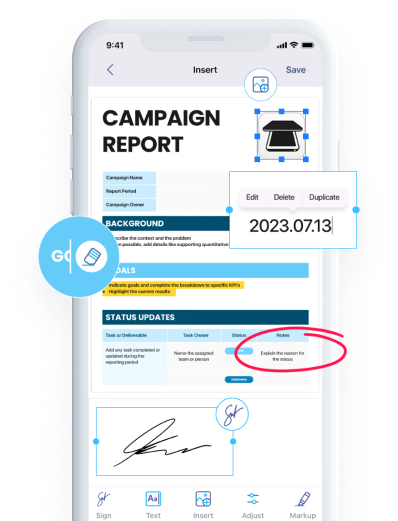
If you need to make other adjustments, you can do that in iScanner as well. The app lets you edit documents, add images and watermarks, create annotations, add an e-signature, convert files to different formats, and translate text into one of 108 languages.
On Android, available built-in file features can vary by device, so a PDF compression app or online compressor is often your best bet.
With iScanner, the process is similar to iOS:
This lets you reduce the PDF size and share it from the same app.
You can also reduce PDF file size using built-in or commonly available desktop tools.
macOS Preview includes an option for reducing PDF file size:
Check the compressed copy before sending it, especially if the PDF contains detailed images or small text.
On Windows, Microsoft Word can help reduce the size of some PDFs:
Microsoft recommends the minimum-size option when file size is more important than print quality.
Keep in mind that opening a PDF in Word converts the document, so complex formatting may not always look exactly the same afterward. Check the finished PDF before sending it.
If you want to avoid converting the document in Word, an online PDF compressor is another option. iScanner also offers a web-based PDF compression tool that you can use right from your browser.
PDFs aren’t the only files that can exceed an attachment limit. High-resolution photos, long videos, and uncompressed audio can take up a hefty amount of space.
Compression works differently depending on the file type. Reducing image dimensions can make a photo smaller, while video and audio compression may involve reducing resolution, bitrate, or other quality settings.
The more aggressively you compress a file, the more likely you are to notice a drop in quality. Always check the finished file before sending it.
If an image is too large to attach, reducing its dimensions or exporting it at a lower quality can help.
On Windows, open the image in an image editor like Paint, select Resize, and reduce its dimensions. For photographs, saving the image as a JPEG can also get you a smaller file.
On Mac, open the image in Preview and select File > Export. For supported formats, you can adjust the quality setting before saving the new copy.
On iPhone or Android, check whether your photo or gallery app offers resizing or export options. Available features vary by device.
The image format matters too. JPEG is generally good for photographs when a smaller file is important, while PNG is better when you need lossless graphics or transparency.
Videos can exceed email attachment limits very quickly. You can reduce their size by lowering the resolution, shortening the video, or using a more efficient video format.
On iPhone, you can go to Settings > Camera > Formats and select High Efficiency for future photos and videos. Depending on the device and recording settings, iPhone can use the more storage-efficient HEVC format for video.
For an existing large video, a video compression or conversion tool can reduce its resolution or bitrate. Keep in mind that stronger compression may make the loss in quality more noticeable.
For very large videos, you’re typically better off sharing a cloud link than trying to compress them enough to meet an email attachment limit.
Audio files can also be made smaller by converting them to a compressed format or reducing the bitrate.
MP3 and AAC are commonly used compressed audio formats. Lowering the bitrate generally creates a smaller file, but it can also reduce audio quality.
For voice recordings, a lower bitrate could still sound clear enough. For music or other audio where quality matters, use less aggressive compression and listen to the finished file before hitting send.
Compression works best when your file is only slightly above the email attachment limit or when you specifically want to send it as an attachment.
Cloud storage may be a better choice for very large videos, folders of files, or documents where preserving the original quality is essential. Gmail allows up to 25 MB in attachments for personal accounts. If you exceed that limit, Gmail automatically uses a Google Drive link instead. Outlook offers a similar option with OneDrive. If you’d rather not rely on either inbox’s built-in cloud storage, dedicated transfer tools work too: WeTransfer’s free tier covers files up to 2 GB, while Apple’s Mail Drop lets you send large attachments through the Mail app.
If you’re sending a PDF that only needs to be a little smaller, compression can save you the extra step of sharing a cloud file.