

02 jun 2026
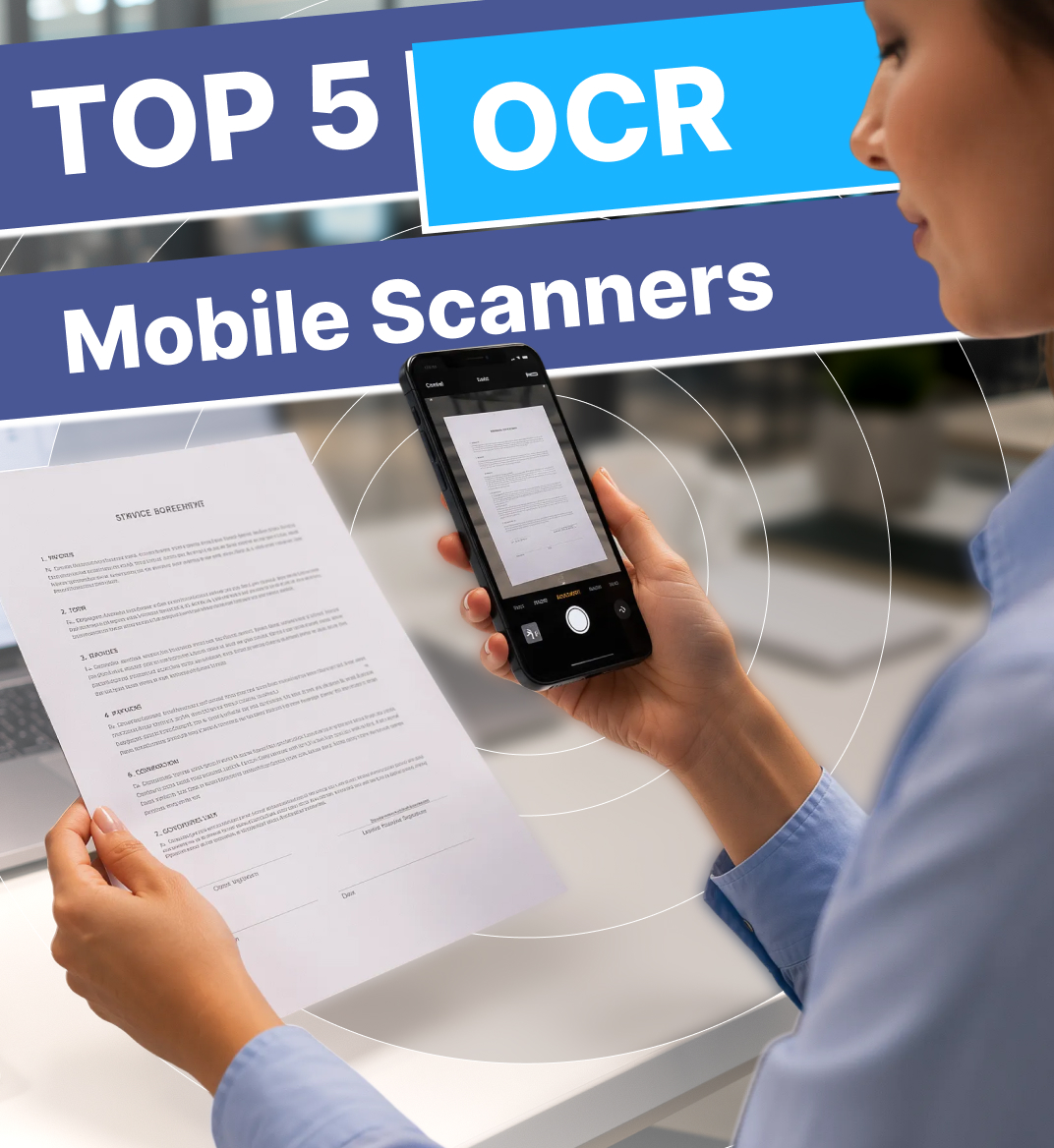
Choosing an OCR scanner today is no longer just about converting images into text. Modern apps promise to preserve formatting, recognize handwriting and symbols, straighten distorted pages, remove visual noise, and turn scanned documents into fully searchable and editable files. To see which apps actually deliver results, we tested five popular OCR mobile scanners on three different documents. Here’s how they stacked up.
OCR (Optical Character Recognition) is a technology that makes images readable for machines and searchable and editable for users. Simply put, it allows you to work with scanned files and PDFs like you would with text editors or word processors.
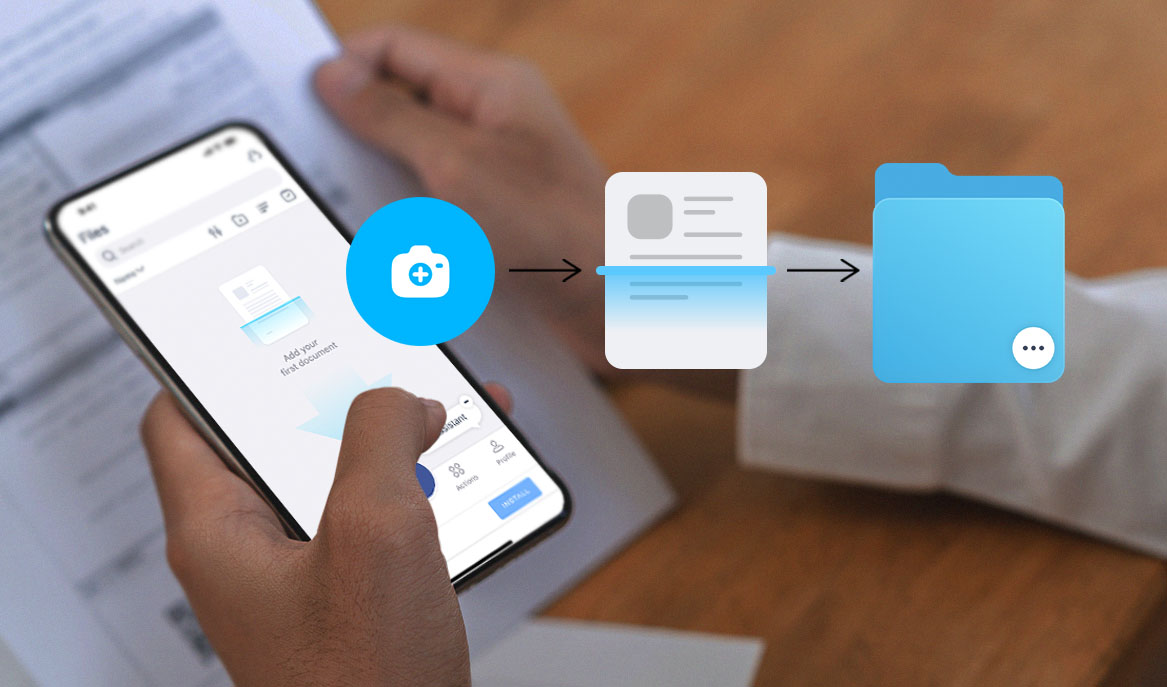
Before text can be searched and edited, OCR needs to recognize it. Technically, the process takes three steps:
A similar workflow doesn’t automatically guarantee the same results. Some mobile scanners have their own built-in OCR, while others rely on third-party engines or cloud services.
Document quality and content can also vary significantly, which means OCR systems may perform better on some files than others. In addition to regular text, documents can contain numbers, special characters, diacritical marks, handwritten notes, signatures, and other elements that make accurate recognition more difficult.
One of the biggest hurdles is preserving the document layout exactly as it appears in the original file. This becomes especially challenging in documents with dense tables, multi-column pages, stamps, watermarks, embedded images, or curved pages. If you work with documents every day, preserving that structure is essential.
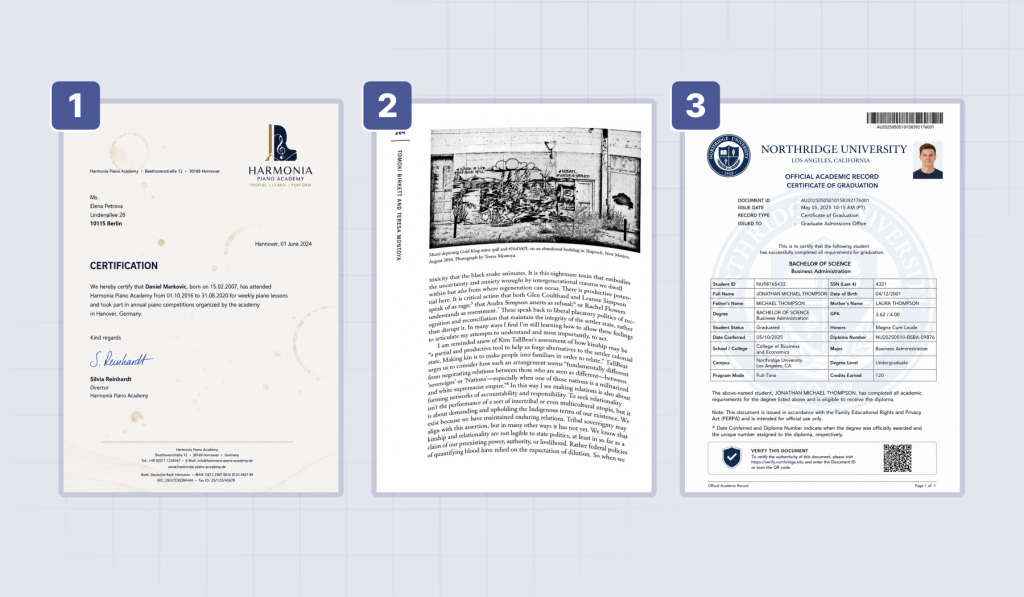
To see how different OCR scanners handle the most common issues, we tested three documents, each with its own set of potential obstacles, using five apps. These apps were chosen based on their popularity and recommendations within the community.
Here’s a quick overview of what each app does best:
iScanner—best overall for any document type or scanning condition
Apple Notes—best for partial text extraction
Adobe Scan—best for professional OCR and layout preservation when scan quality is high
Google Lens—best for quick research and in-image text search
vFlat—best for clean plain-text extraction and curved page recognition
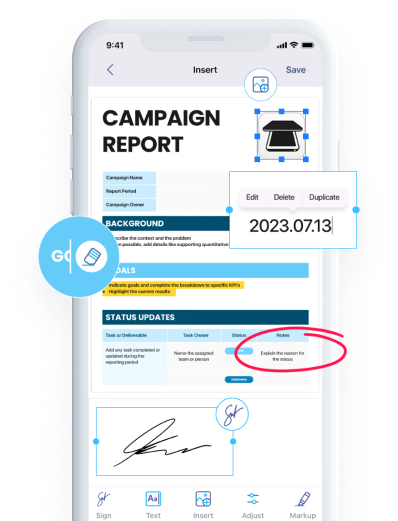
iScanner is a document management platform that lets users scan files, recognize and edit text, improve image quality, add e-signatures, blur sensitive information, restore cropped edges, and more.
iScanner recognized all symbols, including currency symbols and special characters, without any imperfections. Formatting—including bold and italic text, different font sizes, styles, and text colors—was preserved exactly as it appeared in the original files, whether in standalone text, within tables, and in barcode identifiers.
The only drawback was found on the scanned book page: the second author’s surname wasn’t displayed in bold, unlike the rest of the text in the same block.
All text blocks and other structural elements, including tables, logos, and footers, were preserved perfectly. Even the dense table in the graduation certificate remained unchanged, retaining its original size, structure, alignment, and content without distortion.
In more difficult cases, iScanner offers additional refinement tools beyond standard OCR image enhancement. For example, in the piano academy certificate with coffee stains, iScanner’s AI Magic tool cleaned the background and removed nearly all visible imperfections. The two remaining spots can be easily erased using the iScanner Hide tool.

Another example of AI Magic’s impact is the curved book page. After refinement, both the text and image appeared perfectly straight.

Both the embedded photo in the graduation certificate and the mural image were recognized and preserved correctly. The text within the latter one was not mistaken for document text and remained part of the image.
The handwritten signature remained intact.
The university logo watermark on the graduation certificate didn’t cause any issues. iScanner recognized it correctly and removed both the watermark and the university name from the background, leaving the page clean and white.

Aside from the two small coffee stains on the piano academy certificate mentioned earlier, the backgrounds of all three documents remained perfectly clean.
Apple Notes is a built-in iOS app designed for capturing thoughts, organizing information, and collaborating with others. You can also create sketches, checklists, audio recordings, and scanned documents. However, as our tests showed, document scanning can be a bit tricky.
Apple Notes recognizes most symbols and allows you to copy and paste them within Notes or elsewhere. But doing so requires a bit of experimentation.
If you choose the Scan Document option, you can select and copy the text only before saving the scan. Once the document has been saved to Notes, this is no longer possible. To recognize text within a note, you’ll need to take a photo, add it to a note, then tap the text recognition option in the bottom-right corner. The app will recognize the text and make it available for copying.
Either way, you can’t edit or modify the recognized text—only copy it.
Important note: Whichever option you choose, there’s a chance you’ll need to crop the file manually. Auto-cropping, as well as simply taking a picture, can leave parts of the background visible in your scan.
Pro Tip: If you need to recognize a small portion of text without preserving its layout, you can use the Scan Text feature in Apple Notes. It works only with text, but the recognition quality is excellent.
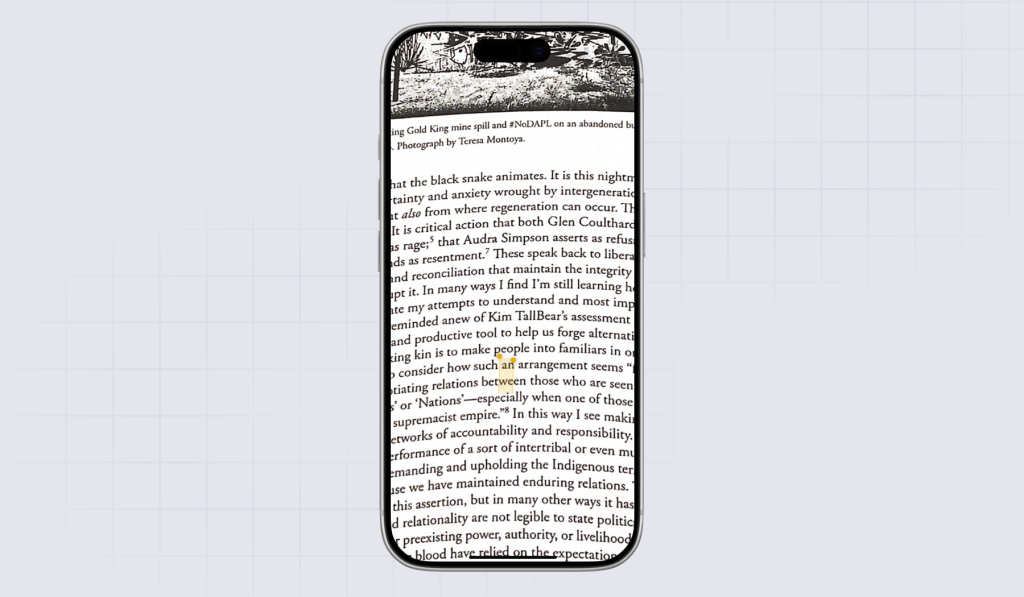
Apple Notes keeps a visual copy of your document and adds a text layer for easy extraction, but with one exception. The app has no tool to straighten a curved book page, so after OCR, it becomes practically impossible to copy a single word without also selecting part of a word above or below it. Entire lines of printed text can also become mixed together when copied.
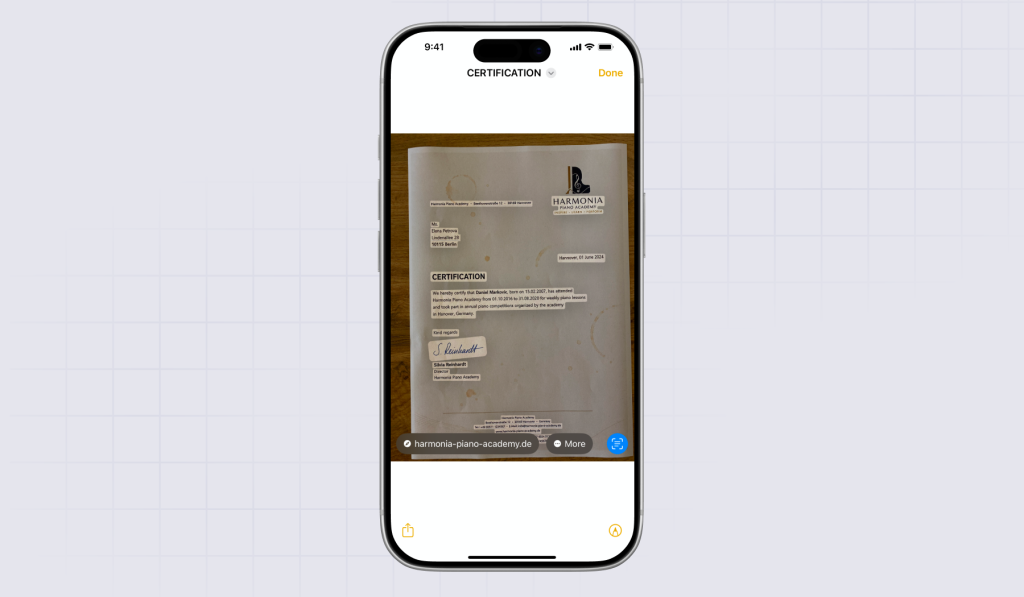
The app preserves images as they appear in the original file, but it doesn’t analyze or extract their visual content. At the same time, text within images (such as logos) can still be recognized.
The handwritten signature on the piano academy certificate is recognized as a separate block, allowing you to copy and paste it. The result is accurate—S.Reinhardt.
The watermark on the graduation certificate, along with the text contained, was recognized as a single graphic element. If you don’t need it in your OCR’d document, the Grayscale filter in Apple Notes can help remove it from the background.
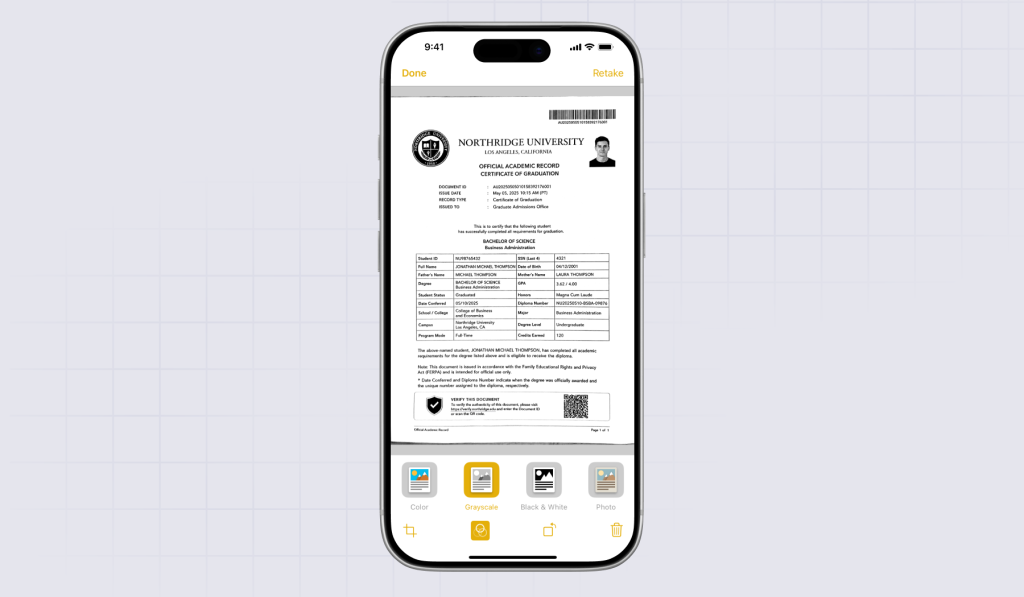
Apple Notes makes document backgrounds white but preserves watermarks and imperfections such as coffee stains. Both can be removed with the Grayscale filter, which cleans up the image completely.
Adobe Scan is a mobile document-scanning app that allows users to capture, digitize, and organize documents. The app can also recognize text using OCR, convert scans into searchable PDFs, and enhance document quality.
There were no issues with symbols in any of the three documents. Formatting remained identical to the original.
Adobe Scan preserved all structural elements. The table in the graduation certificate also remained unchanged. However, the app occasionally recognized several cells as a single block instead of separating them into three distinct parts.
As for the curved book page, the result was similar to Apple Notes—the words and lines remained curved and became mixed together when selected.
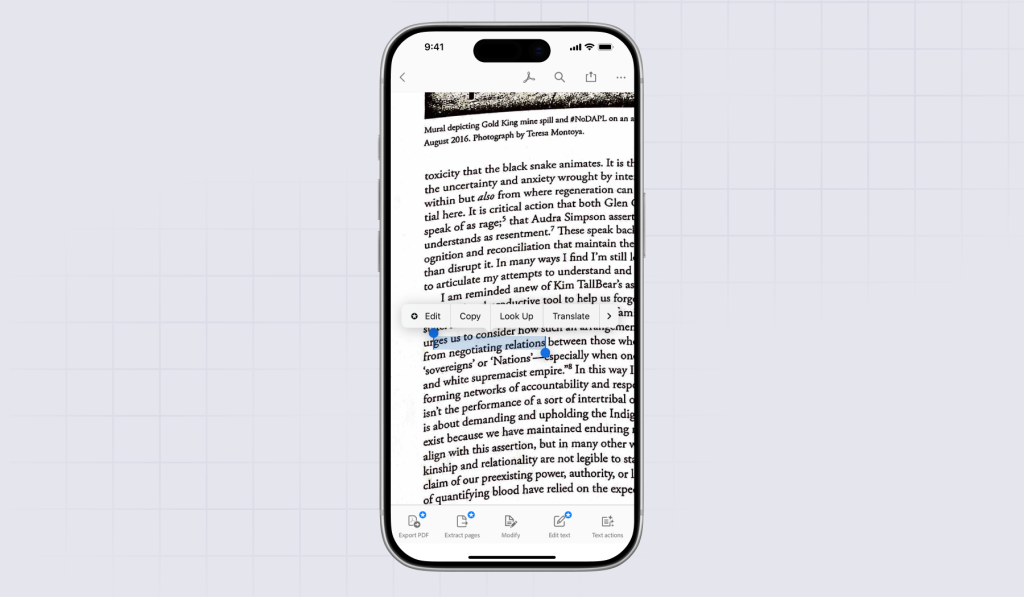
Adobe Scan kept all images as they were in the original files. One minor drawback is that the app recognized the embedded photo on the graduation certificate as two separate blocks. Since it was an image rather than text, this didn’t cause any issues.
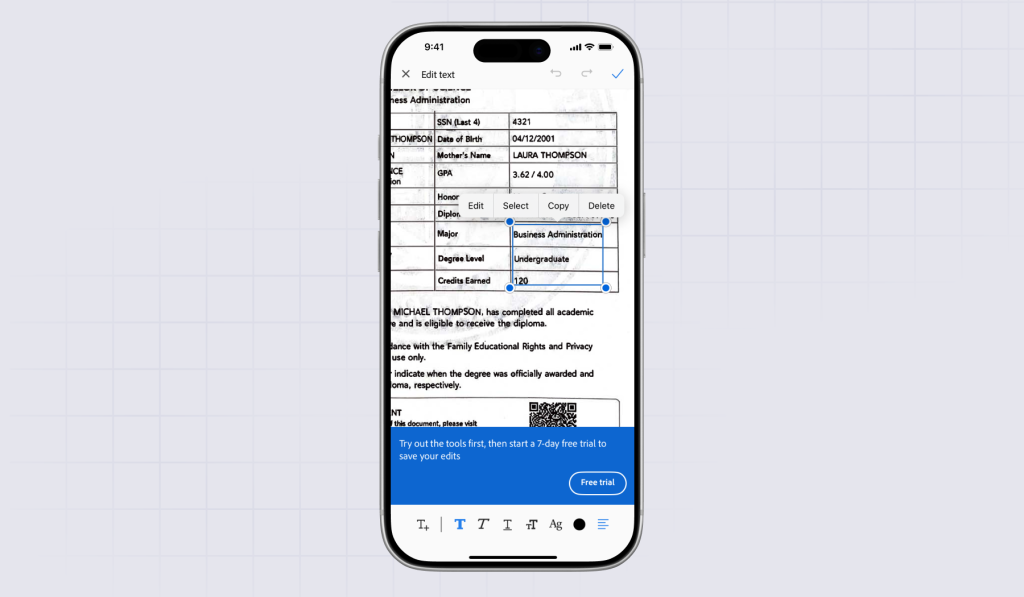
The handwritten signature wasn’t recognized as a text element and couldn’t be selected or copied. Its position on the page and appearance remained identical to the original.

The watermark didn’t interfere with text extraction and remained exactly in the same position, although slightly faded. None of the filters available in Adobe Scan could remove it completely.
The app improved the background, leaving it evenly white. Coffee stains were left almost exactly as they appeared in the original document, and none of the available filters could remove them effectively. However, they can all be removed manually using the Magic Eraser tool.
Google Lens is a tool in the Google ecosystem that can handle a wide range of tasks. It can extract and translate text, identify objects such as plants or animals, and search for items by finding visually similar results.
Google Lens correctly recognizes and highlights text within a document, which can be copied and pasted elsewhere. The app doesn’t support text editing.
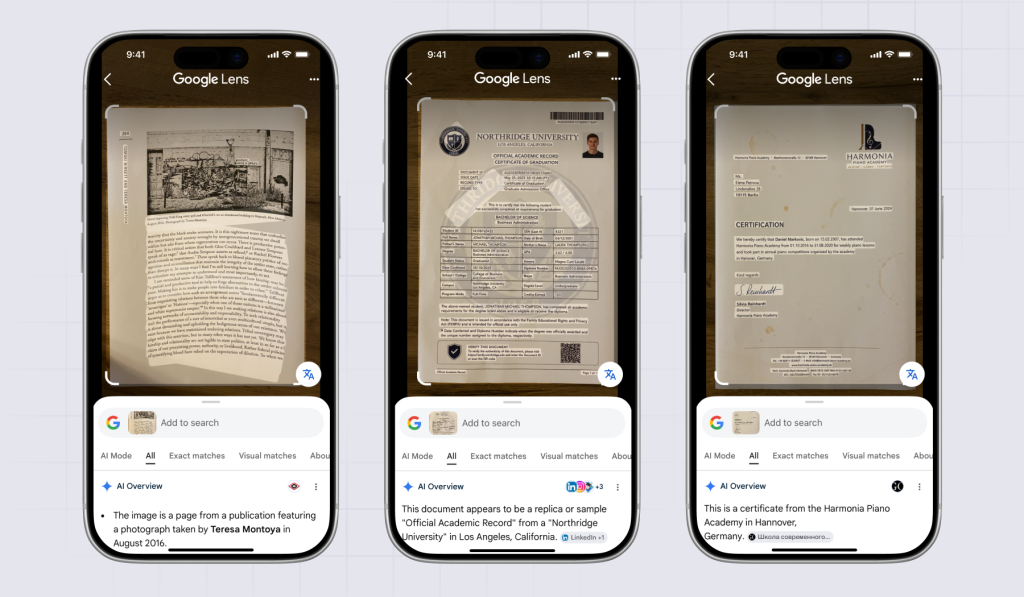
Google Lens is designed for quick text capture and search rather than document reconstruction, and it can’t straighten a curved page. As a result, the layout remains the same as in the original. Because the page isn’t straightened, copied text can become mixed with neighboring words and curved lines.
The app correctly recognized images as graphic elements in most cases. However, in the graduation certificate, it partially recognized the university’s logo as text, identifying only a few letters from the full name.
Google Lens extracted the handwritten signature and made it available for copying.
Unlike other apps, Google Lens didn’t handle the watermark on the graduation certificate well. It kept it in the background but also extracted a few letters from the university’s name as text.
Since the app works only with text elements, the backgrounds remain exactly the same as in the original. Imperfections such as coffee stains also remain in place.
vFlat is a mobile scanning app that also provides tools for document management. It features auto-cropping, image enhancement, OCR text extraction, and the ability to add e-signatures by drawing them directly on the screen.
vFlat recognizes and extracts text with good accuracy, but shows the result separately on a different screen that resembles a text editor (without the ability to edit). It doesn’t preserve formatting or font variations, limiting the output to either capitalized or non-capitalized text.

The app doesn’t keep the layout of the original document. Instead, all elements are shown one after another, divided by paragraphs.
However, the app automatically straightened the curved book page before starting text recognition, which made the result more accurate than in apps that couldn’t straighten the page.
There are no images in the OCR’d version of the document. Text from logos is also extracted during recognition.
vFlat didn’t recognize the handwritten signature on the piano academy certificate. It didn’t appear in the extracted text.
The watermark wasn’t extracted and didn’t interfere with the extracted text.
Since vFlat shows recognized text on a separate screen, the original background isn’t preserved.
| App | Best for | Layout Preservation | Curved Page Handling | Signature Recognition | Watermark Handling | Formatting Preservation |
|---|---|---|---|---|---|---|
| iScanner | Complex documents and overall OCR | Excellent | Excellent | Yes | Excellent | Very good |
| Apple Notes | Partial text extraction | Good | Poor | Yes | Good with filters | Limited |
| Adobe Scan | Professional OCR | Very good | Poor | No | Moderate | Very good |
| Google Lens | Quick text extraction and research | Poor | Poor | Yes | Poor | Minimal |
| vFlat | Plain-text extraction | No | Good | No | Good | No |
We tested five popular OCR scanning apps on three challenging documents to see how they perform in real-life situations. The documents contained dense tables, curved pages, watermarks, logos, signatures, coffee stains, and images.
All five apps successfully recognized text across all three documents, though some imperfections remained. However, their ability to preserve layout, formatting, visual blocks, and other elements varied significantly. Here’s a quick overview of what each app does best:
iScanner—best overall OCR performance
Delivered the most accurate and complete result. Excels at preserving formatting, layout, symbols, images, and complex document structures.
Apple Notes—best for quick text extraction
Convenient for extracting small portions of text directly on iOS. Works well for basic OCR and copying.
Adobe Scan—strong layout preservation, but limited flexibility
Reliable OCR with good symbol recognition and solid document structure retention. Performs well with tables and general scans, but struggles with curved pages.
Google Lens—best for fast text-only recognition without formatting
Optimized for quick OCR and visual search rather than document reconstruction. Works well for extracting text, signatures, and simple elements, but does not preserve layout and may misinterpret logos or mixed visual elements as text.
vFlat—best for clean text output without formatting needs
Produces accurate text extraction in a clean, editor-like view. However, it discards layout, formatting, and images entirely, making it suitable only for plain text extraction.