

30 jun 2026
If you’ve ever received a contract in German, a medical report in Spanish, or a birth certificate in Hebrew, you know how time-consuming it can be to translate paperwork. Today, you can scan and translate documents directly from your phone, whether you’re working with paper, a PDF, or even a picture.
There isn’t just one way to do it, though. Some tools focus on quick translations. Others help you create searchable, shareable copies of your documents.
The biggest difference between these methods isn’t the translation itself—it’s what happens before and after it. While some can only translate what your camera sees, other tools help you create searchable documents that you can edit, save, and share. Below, we’ll compare 3 approaches and explain when each one makes the most sense.
Depending on your workflow, you’ll need:
If you’re comparing different OCR mobile scanners, look for multilingual text recognition, automatic language detection, and tools that let you scan, translate, and export documents without switching between multiple apps.
If you only need to understand a few lines of text, using your phone’s camera is usually the fastest option. Apps like Google Translate let you translate a document with your camera by recognizing printed text and displaying a translation in real time.
This method works well for:
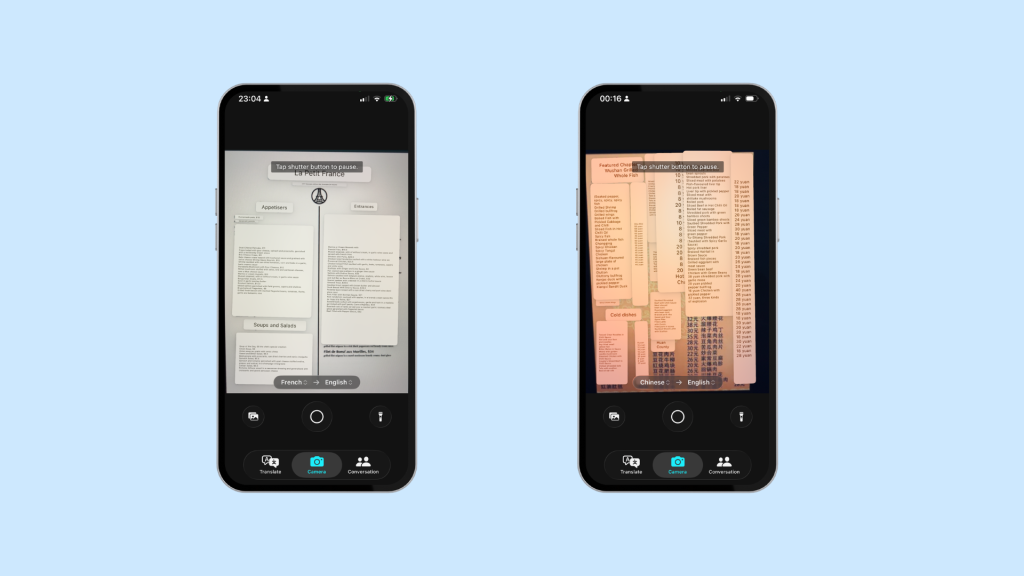
If someone sends you a photo of a document, you can also use your camera to translate the text without retyping it.
If you need to keep a copy of the document, edit it later, or search the text, you’ll get better results by scanning it first. Once it’s scanned, text recognition turns it into searchable text, making it much easier to translate longer documents accurately.
If someone sends you a scanned PDF, you may not be able to translate it right away. Many scanned documents are just images, so translation apps can’t read the text until it’s been recognized.
OCR (Optical Character Recognition) extracts the text from the page, making it searchable, editable, and ready for translation. It’s especially useful when you’re working with:
A quick way to check if you need OCR is to try selecting the text in your PDF. If you can’t highlight or copy anything, the document is most likely image-based.
You’ll also get better results from a clear scan in iScanner. Good lighting, sharp focus, and flat pages make it easier to recognize the text accurately, especially when you’re working with small fonts or older paperwork.
OCR prepares your document for translation, but it’s only one part of the process. You’ll still need a way to translate the recognized text, save the finished document, and keep everything organized. That’s where an all-in-one scanner becomes a more practical option.
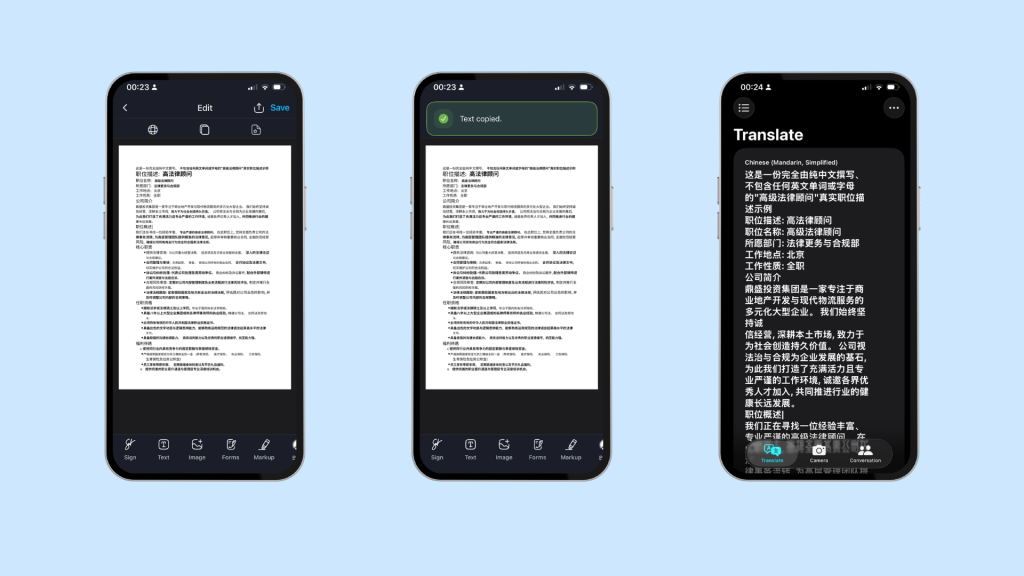
If scanning and translating documents is something you do regularly, keeping the entire process in one app can save time and help you stay organized.
Imagine you’re applying for a visa and need to translate a birth certificate, or you’ve received a contract from an overseas client. You probably want to scan it, translate it, and save the finished copy in one place rather than switching between several apps.
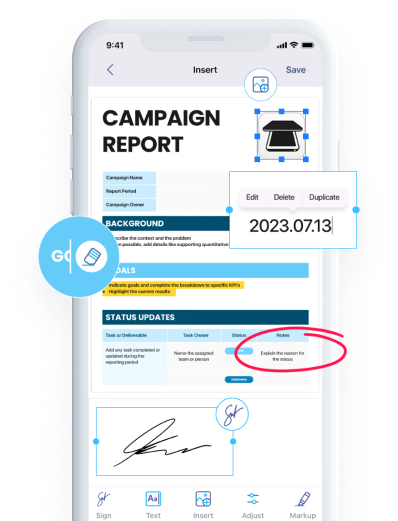
With iScanner, the workflow is straightforward:
After the text has been recognized, you can choose the translation option that best fits your task.
If you just need the document in another language, tap Translate to convert it in a few taps. If you need more than a direct translation, open AI Chat instead. You can ask it to translate the text, explain specific sections, summarize the content, or answer questions.
Because iScanner detects the document’s language automatically, you don’t have to identify it yourself. This is very handy when you’re working with bilingual or multilingual documents, such as passports, certificates, or contracts that contain two or more languages on the same page. Once the text has been recognized, you can send it to AI Chat and translate the entire document without copying anything into another app.
The translated text also preserves the original layout, so paragraphs, tables, and spacing remain easy to follow. That makes it simpler to compare the translation with the original, especially when you’re reviewing contracts, certificates, invoices, or other paperwork where formatting provides important context.
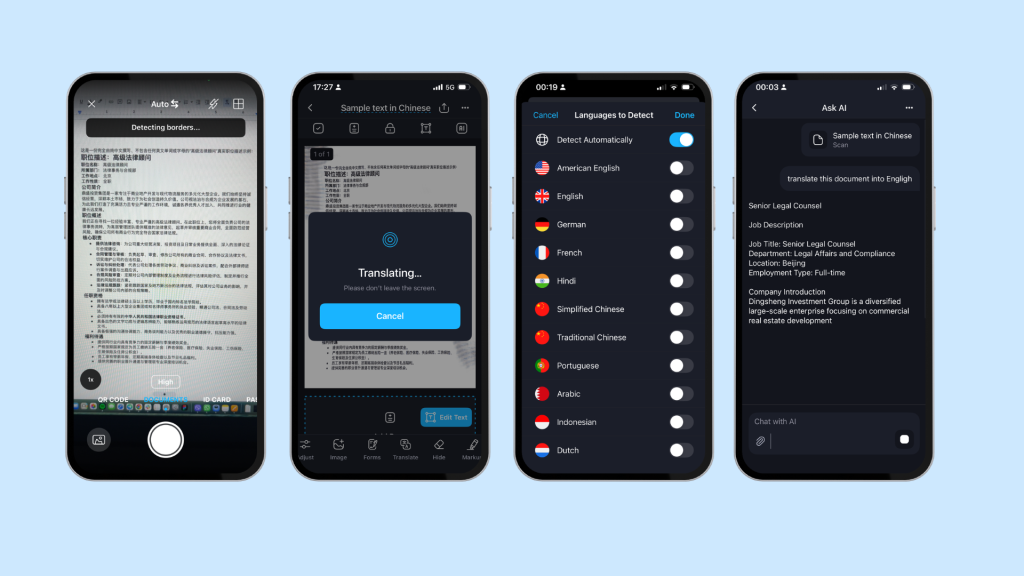
| Method | Best for | Things to consider |
| Phone camera | Menus, signs, labels, and short documents | Great for quick translations but doesn’t create a searchable document. |
| OCR + translation | Existing scanned PDFs and image-based documents | Requires OCR before translating scanned text. |
| iScanner | Paper documents, PDFs, and multilingual paperwork | Best suited if you regularly scan, translate, and organize documents in one place. |
The right translation method depends on the document you’re working with. Reading a menu while traveling is very different from translating a contract you’ll need to review later. A camera translator is great for quick reference, while OCR helps turn scanned documents into searchable text.
If you regularly work with multilingual documents, completing every step in one app makes the process simpler and keeps your files organized. If you store passports, legal documents, or medical records on your phone, it’s also worth paying attention to mobile document security so your files stay protected.
Yes. You can scan and translate Chinese to English using multilingual OCR. iScanner recognizes both Simplified and Traditional Chinese characters before translating them into English.
Yes. After OCR extracts the text, you can scan and translate Spanish to English without manually typing the document.
Yes. OCR converts scanned pages into searchable text before translation. This makes it easy to translate a scanned PDF to English, even if the original file is only an image.
You can scan documents in many languages, including Spanish, French, German, Italian, Portuguese, Dutch, Polish, Swedish, Turkish, Hebrew, Arabic, Hindi, Chinese, Japanese, Korean, Vietnamese, Thai, Russian, Greek, Indonesian, and Filipino. Multilingual OCR recognizes the text, allowing you to translate the document while keeping a searchable digital copy.