

27 may 2026
A professional-looking PDF with a perfectly white background doesn’t always fit in. A scanned-looking file with subtle imperfections is sometimes a better choice, especially when you need to submit application documents or match the appearance of other scanned paperwork. With the right tools, you can give PDFs a realistic scanned look in just a few minutes, without wasting time and paper on printing and rescanning.
Creating a clean and editable PDF from a scan or a photo is a common task for anybody working with documents, and there are plenty of tools designed specifically to deal with it. They can remove backgrounds and convert scanned pages into structured documents.
But sometimes the situation is the opposite—you need to make your PDF look scanned. This usually happens when documents need to look more natural, resembling a hard copy scan rather than a digitally created file. For instance, a perfectly clean PDF can look out of place next to scanned contracts, receipts, signed forms, or archived paperwork. In such cases, adding scan-like details like subtle paper texture or slightly uneven backgrounds helps the document look more authentic.
The first thing that comes to mind is printing your file and then scanning it again. However, this solution comes with some limitations. You need to find a printer and scanner somewhere, use paper, and, most importantly, find time for the whole process.
After rescanning, your document may need a bit of refining to fix quality issues like shadows or fingers appearing in the frame. At the end of the day, you spend extra time and effort trying to make a once-polished document look polished again, with the only real difference being that it now resembles a scanned file.
Despite all these challenges, printing and rescanning your document may still be a workable option. However, there’s an even simpler way to achieve the same result without any of these issues.
You can achieve the same scanned effect digitally within a few minutes using a dedicated tool. One such tool is iScanner.
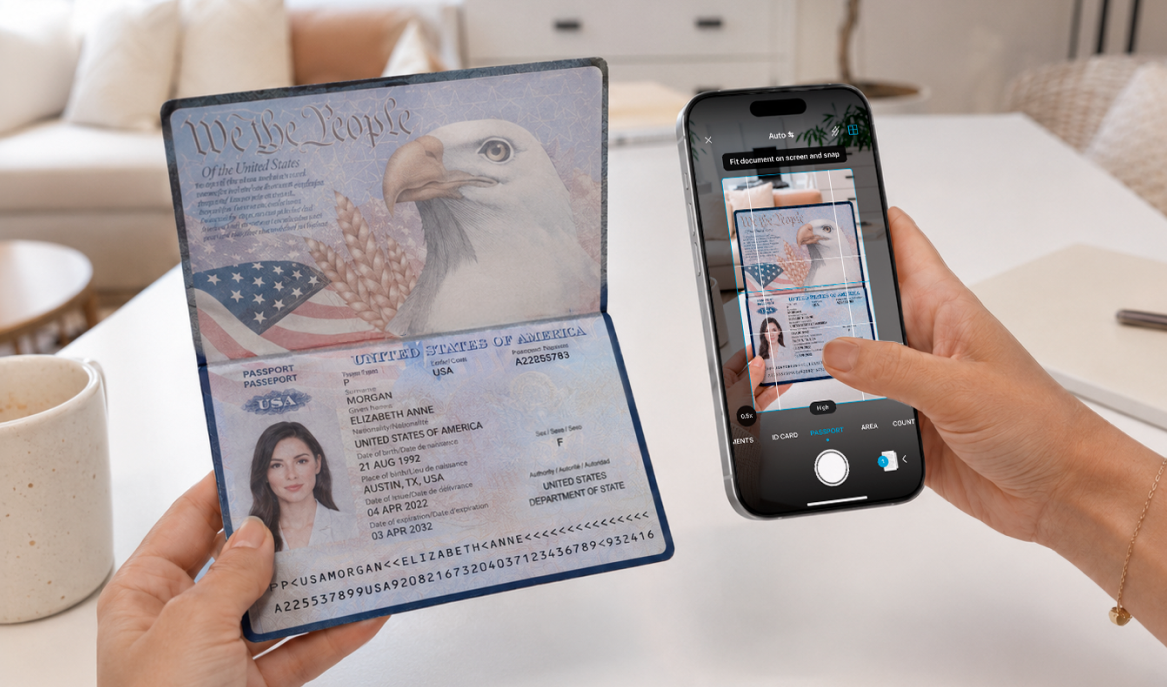
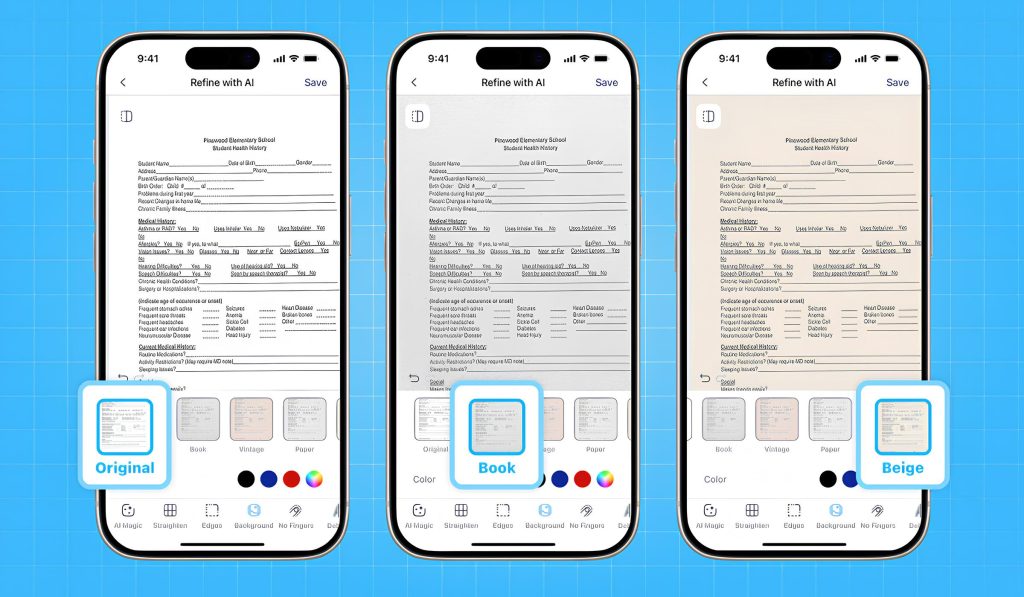
The iScanner app combines a mobile scanner and PDF editor, making it capable of solving a range of document-related problems—including giving a PDF the appearance of a scan. This effect is achieved by adjusting the background texture and color.
It only takes a few taps to apply it:
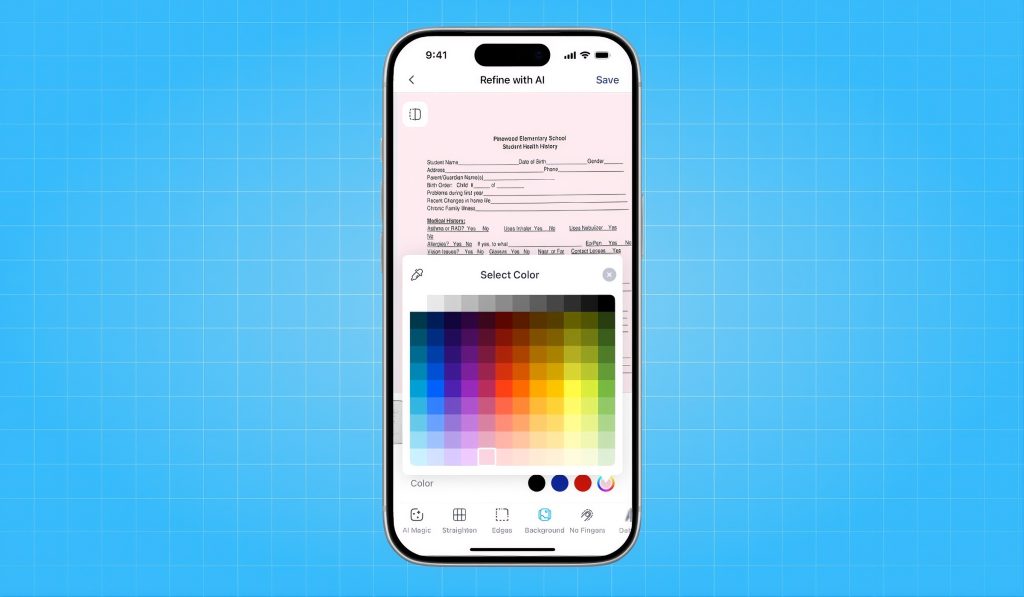
If none of the options work for you, you can choose the background color manually by tapping one from the palette.
Note: The iScanner app is also available in ChatGPT. If you need to adjust your scan or PDF without leaving the chatbot, here’s a short guide on how to do it.
Not exactly. You can apply filters in iScanner by tapping Adjust—Color in the document menu and choosing one (black & white, office, grayscale, bright, and more). However, these filters adjust the way the file’s contents look. The Background feature works with the color and texture beneath them.
Not at all. Scan-style effects keep text sharp and readable, adjusting background texture and color.
Absolutely. It doesn’t matter whether your PDF was originally created digitally or imported from images and polished afterwards, you can make it look scanned.
Yes. These effects can be used for signed PDFs. At the same time, if you need to e-sign your file, iScanner can do it as well.