

02 apr 2026
If you think about writing reports, preparing proposals, drafting contracts, and collaborating with teams, Google Docs is probably the first solution that comes to mind. But when the document is ready to share, many people prefer to convert it into a PDF—and there are several reasons why. PDF files preserve formatting, prevent accidental edits, open consistently across devices and operating systems, and support more complex layouts. This makes them ideal for sending resumes, submitting assignments, sharing official documents, or archiving records. Fortunately, turning a Google Doc into a PDF is, without exaggeration, extremely simple. In this guide, you’ll learn several practical ways to save a Google Doc as a PDF—from the basic built-in export options to more advanced solutions that help you manage your PDFs after conversion.
The simplest way to make a PDF out of a Google Doc is through the Download option inside Google Docs. This method works directly in your browser and only takes a few seconds:
Google Docs will generate a PDF that preserves the document’s general features, including formatting and layout. This method works well when you simply need a static version of your document for sharing or printing, serving best for:
Another built-in method is exporting your document through the Print menu. While this may sound unusual, it gives you more control over layout and formatting settings:
This approach is especially helpful when you need to adjust the document layout before creating the PDF—for example, if you want to change margins or switch between portrait and landscape orientation. This approach is best for:
If you’re working from your phone or tablet, you can still export your document as a PDF using the Google Docs mobile app:
This method is useful when you need to send documents quickly from your mobile device—such as during meetings, while on the go, or when working remotely.
Saving a Google Doc as a PDF is easy, but sometimes additional steps are required after exporting. For example, you may need to:
In these cases, downloading the file from Google Docs may not solve the problem. This is where document management tools can help extend your capabilities.
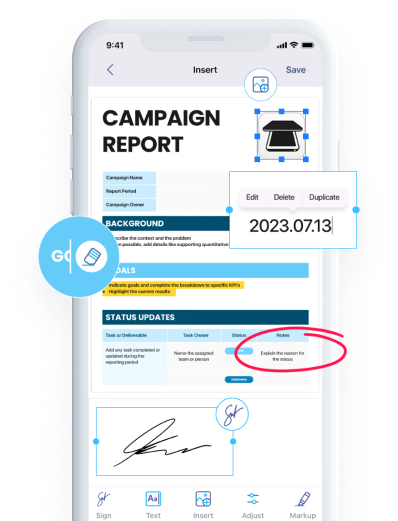
Once your Google Doc is saved as a PDF, you may still need to edit or manage the file before sharing it. Document scanning and editing tools allow you to perform these tasks efficiently. Apps like iScanner provide a complete all-in-one package for editing and managing PDFs after they’re created.
With iScanner, users can reorganize pages, merge documents, add annotations, or export files to multiple formats directly from their mobile device. This makes it easier to prepare documents for professional use, especially when working outside a traditional office environment.
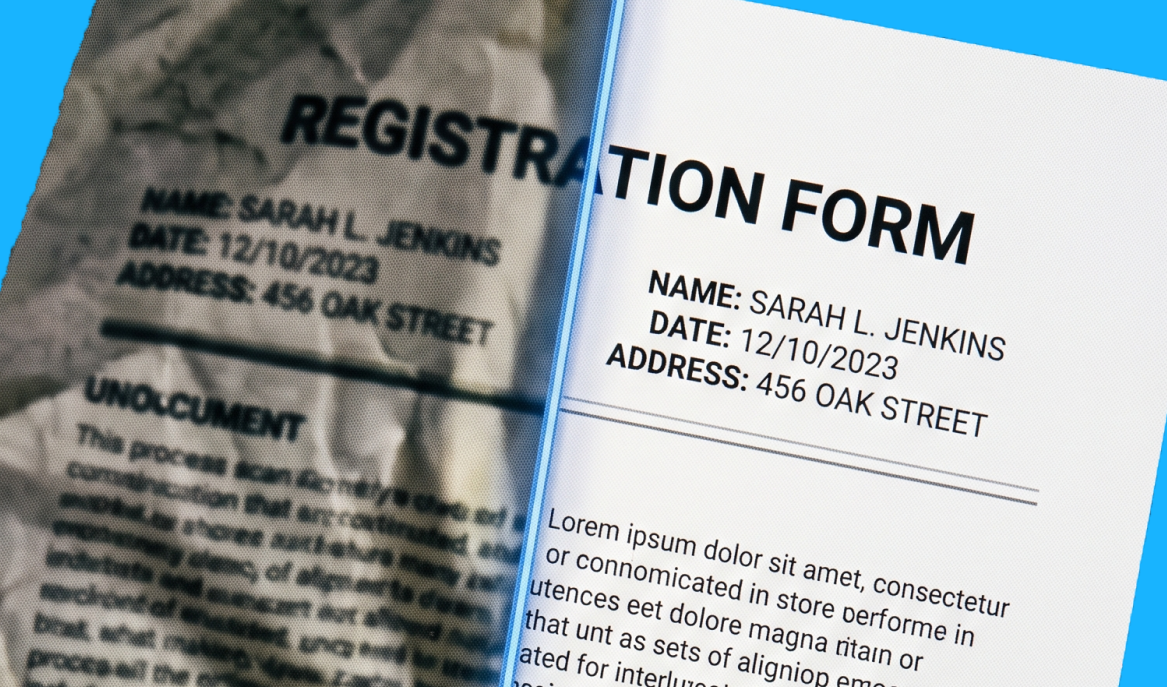
Sometimes the document you need to convert into PDF format isn’t a digital one in Google Docs at all. It may be a printed contract, handwritten notes, a few pages from a book, or a paper form that needs to be digitized. Instead of typing everything again, scanning apps can convert physical documents into clean, high-quality PDFs. Modern scanning tools use AI-based image processing to automatically detect document borders, correct perspective, improve scan quality, and eliminate visual artifacts.
This is how iScanner handles the task:
Another common challenge arises when PDFs contain images instead of selectable text. For example, if you scan printed pages or import images into a document, the resulting PDF may not allow text selection or search. iScanner’s in-house Optical Character Recognition (OCR) solves this problem by converting text in images into digital text. It allows you to search within PDF documents, copy text into other files, and convert scanned pages into editable formats. Additionally, iScanner’s OCR solution can recognize text in two dozen languages and process documents quickly, making it easier to manage large digital archives.
To make your work with documents smoother, consider the following best practices when exporting Google Docs to PDF:
Check headings, page breaks, and spacing for consistency to ensure the document looks correct in the final PDF.
If the document will be printed, confirm that margins and page orientation match your intended format.
If several documents are somehow connected, be it a similar topic or intent, merging them can make sharing them as a single file easier.
Always keep your editable Google Doc version at hand so you can make changes later if needed.
We’ve just explored a very simple yet important and often overlooked activity in modern document workflows. The built-in export options in Google Docs allow you to create PDFs quickly, whether you’re working on a desktop or mobile. For more advanced tasks, such as editing, scanning, merging, or organizing documents, dedicated document tools can help extend what you can do with your PDFs. Essentially, by combining Google Docs with a flexible document management tool like iScanner, you can create professional, well-organized files that are easy to share, store, edit, and access whenever you need them.