

23 mar 2026
Scanning and organizing family documents is the most reliable way to keep them safe, accessible, and easy to manage whenever you need them. And it’s much easier than you might think: it doesn’t cost a fortune or take years. Here’s a simple, four-step guide on how to organize family documents.
Long story short, to keep them always accessible. Compared with other documents that we usually take some care of, personal or family papers are often left abandoned for years—on shelves, in drawers, boxes, page protectors, or simply scattered around the house. Over time, they can become damaged or even completely lost.
So, scanning and organizing your documents can help you:
By the way, by saying documents, we mean anything that is relevant to you and connected to your family. Both a marriage certificate and an old newspaper article about a relative deserve to be digitized if they are important to you.
The best advice is to do it as soon as you can. As you know, there’s nothing more permanent than temporary. The longer you postpone, the greater the risk of losing something important and having to spend days trying to restore it.
If you like tying tasks to specific days or holidays, the end of March marks World Backup Day. It’s a great opportunity to get started, especially if you need some motivation.
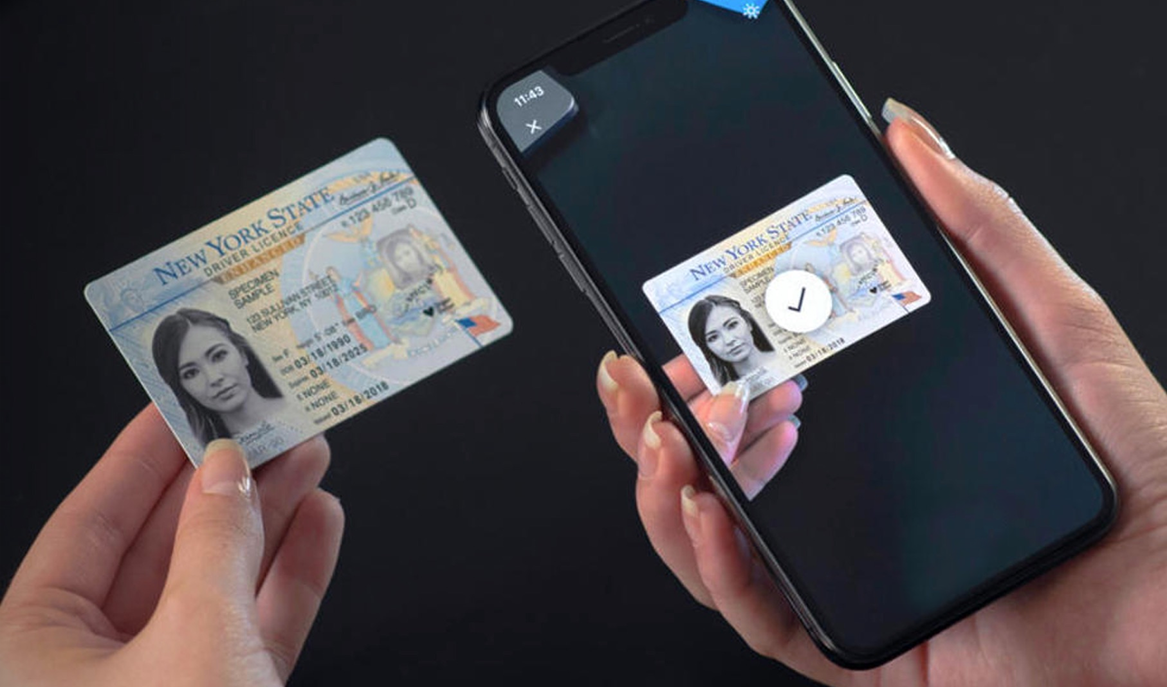
Ask yourself three questions about each document. Is it emotionally or otherwise relevant to your family or to you personally? Is it difficult to replace? Can it be important for proving something? If the answer is yes to at least one of these questions, it’s worth being digitized.
The most common types are:
Gather your papers in one place and split them into different categories. You can use the ones mentioned above (certificates, passports, etc.) or create your own system. Whatever option you choose, don’t forget to include one more category—documents you don’t need anymore, either in paper or in digital form. This group should be thrown away or recycled without hesitation.
This initial step may take some time, but it will make the next steps much easier.
You might be tempted to simply take a picture with your phone and keep it as is, but this isn’t the best option.
First, how long does it take to find a picture in your gallery that you took more than a couple of weeks ago? That’s the point.
Second, photos often come with shadows, uneven edges (due to a misaligned phone while taking the picture), inconsistent lighting, and other imperfections. In short, the quality is usually far from ideal.
Here’s a step-by-step guide to scanning family documents, with a few tips to help you do it quickly.
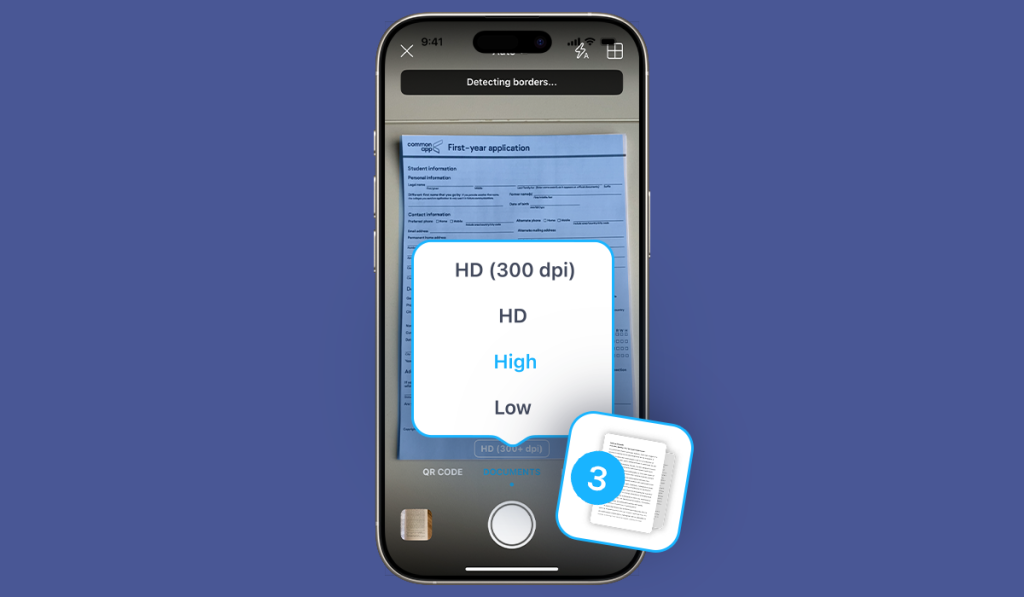
You’re done with scanning. Now you can enhance the quality and dimensions of your document if needed. You can:
Tap Save when you’re done.
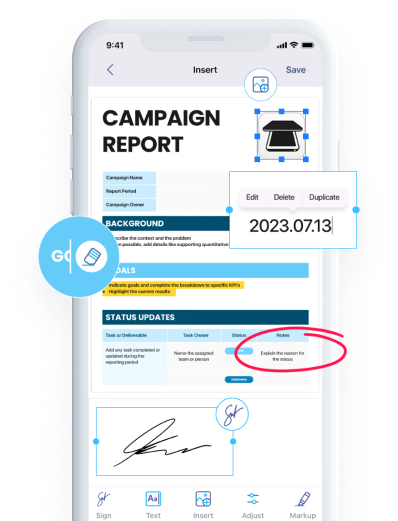
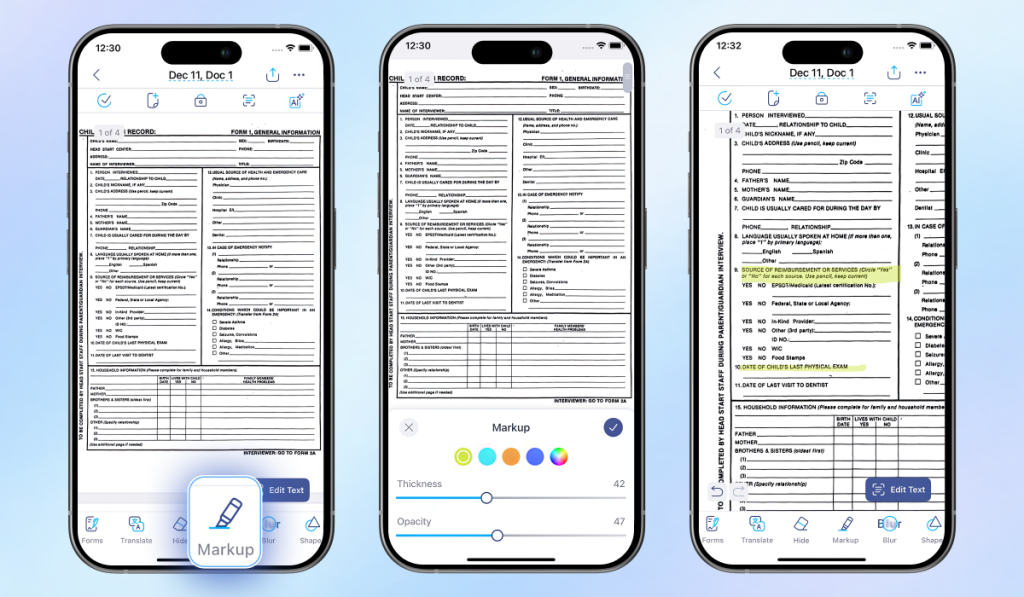
If needed, you can annotate your digitized documents to make them more informative and easier to work with. In iScanner, you can highlight important sections you might need to return to later, blur or hide sensitive information, add comments, and more. This makes your documents easier to navigate over time.
Finally, just as you created a system for your paper documents in Step 1, you need to do the same for digital ones. Like paper documents, digitized files can also get lost over time without a clear system and structure, and all your efforts could be in vain.
It might seem a bit monotonous at first glance, but in fact, it’s a highly creative process. The truth is that there’s no single perfect way to organize your family documents—you should create your own system. In iScanner, you can organize your documents into folders based on their purpose, type, date, and more. To create a folder, tap My Files at the bottom of the Home screen, select the Add Folder icon, and give your folder a name.
Tip: You can use iScanner’s AI-driven file name generator to name your files automatically. The app will scan the contents of your document and give it a proper, clear name.
Pro Tip: If at this stage you notice that some files would fit your system better when combined into one, there’s no need to waste time rescanning them. You can merge existing files into a single document in a few clicks. The same goes for splitting files, rearranging pages, moving pages from one file to another, and more. You can find all the options in our full PDF management guide.