



Click Select File or simply Drag & Drop
No signing-in or installation required


Download iScanner to manage PDFs with ease!

Convert HEIC to JPG in seconds with one click
No ads & no watermarks added to your documents

Easily convert HEIC to JPG while keeping your files safe and private

Use our HEIC to JPG converter on desktop or mobile devices for smooth and convenient file conversion

Looking for a HEIC to JPG converter free of charge? No registration, subscriptions, or hidden fees
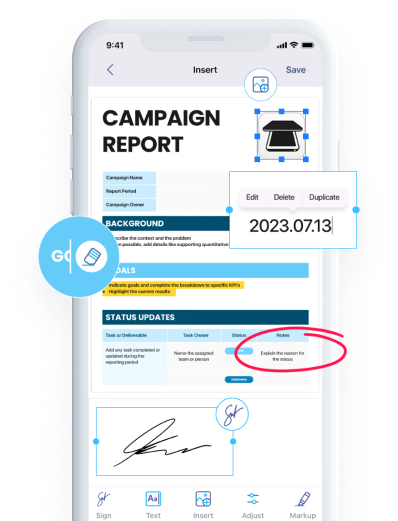
To avoid the need to convert HEIC to JPG, download iScanner on your iOS device instead. There, you can scan whatever you like and save it as an editable JPG file with just a few taps.
You can edit the downloaded JPG file in any image editor. Alternatively, you can first edit your HEIC file and then convert HEIC to JPG to receive the updated version of the file.
Your photos are saved as HEIC because your device uses it as the default image format to reduce file size while maintaining high image quality. Many Apple devices save photos as HEIC by default.
Just upload the file to this website and change HEIC to JPG! With our platform, you’ll get the file in JPG in a couple of seconds. After that, click the Download button, and the converted file will be saved to your device or the cloud storage you’ve chosen. Alternatively, you can download our iOS app, select any photo you need, and tap Save to iScanner. This will convert your photo to JPEG.
HEIC is an image format used on iPhones, and finding free tools to convert HEIC to JPG can be challenging. Fortunately, with iScanner’s Web Tools which support a wide range of formats for conversion it’s no longer a problem. And if you don’t want to use your web browser, download our app for iOS. It has a number of helpful features, and a file converter is one of them. Just upload the file you need to the app, and iScanner will quickly convert it!