

06 apr 2026
Scanning an ID card sounds simple, but if you’re wondering how to scan an ID card properly, getting a clean, usable result can be harder than it seems. A poorly scanned ID can get rejected, look unprofessional, or be difficult to read. That’s why choosing the right method matters.
There are several ways to do it, and some are much more reliable than others. Let’s start with the main options.
If you want a sharp, readable, and professional scanned ID, using a dedicated scanner app like iScanner is the most efficient approach.
Here’s exactly how to scan an ID card using your phone.
Start by installing and opening iScanner on your device. It works as a complete ID scanning solution, combining capture, enhancement, and export tools in one place.
Put your ID on a flat surface before scanning.
Proper positioning is key to getting a clean ID scan.
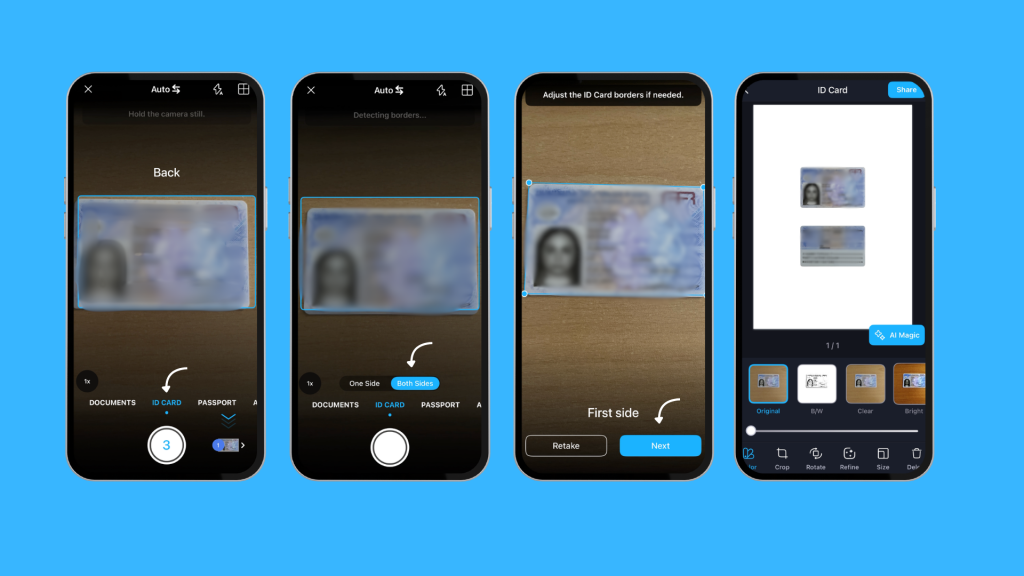
Tap the scan button and point your camera at the ID.
The app will:
In most cases, you don’t even need to press the button. The app automatically detects the document, aligns it, and captures the scan in just a few seconds. Once captured, it can also recognize and extract text using OCR, so key details from the ID are ready to copy or use right away.
Once the scan is captured, iScanner improves it instantly.
You can also scan both sides of your ID and combine them into a single, organized document, making it easier to store, share, or submit when needed. This is where professional ID scanning software stands out compared to a simple photo.
Now your scanned ID is ready to use.
You end up with a polished, high-quality scanned copy of your ID.
While a dedicated scanner app gives the best results, there are a few other ways to scan an ID card depending on your situation.
An online ID scanner allows you to upload an image and turn it into a scan.
This option is convenient if you don’t want to install anything, but it usually comes with trade-offs in quality and privacy.
This is the traditional ID document scanning method used in offices.
It can produce high-quality results, but it’s not practical for quick or on-the-go scanning.
You can also just use your phone camera.
This is the simplest option, but it’s not true scanning ID properly. The results often include shadows, distortion, or uneven lighting, which can make the document harder to use.
If you want your ID scans to look sharp and professional, follow these tips:
If you’re working with multiple documents, it also helps to follow best practices for scanning documents in bulk efficiently.
For businesses, scanning ID cards is often part of daily workflows.
A strong ID scanner for business helps with:
An advanced identity document scanning system improves efficiency and accuracy across teams. For broader workflows, you can also learn how to organize important documents digitally.
There are plenty of ways to scan ID cards, but they don’t all give you the same quality.
Taking a photo is fast, but it often comes out uneven or hard to read. Online tools can work in a pinch, but they don’t always give you much control over the final result.
If you want something that looks clean, clear, and ready to use, a dedicated app like iScanner makes the process much easier. It helps you get consistent, professional-looking scans without extra effort.
How do I scan my ID card with my phone?
Open a scanner app like iScanner, place your ID on a flat surface, and point your camera at it. The app will detect the edges, capture the scan, and let you save or share it.
How to properly scan an ID?
Place your ID on a well-lit, flat surface, avoid glare, and make sure all edges are visible. Use a scanning app to automatically align and enhance the image for the best quality.
Can you scan an ID with your phone?
Yes, you can. A mobile scanner app turns your phone into a document scanner and helps you create a clean, professional digital copy of your ID.
How to scan an ID card to PDF?
Use a scanner app, capture your ID, and choose PDF as the export format. You can then save it or send it directly from your phone.
Can I scan my ID on a printer?
Yes, if your printer has a scanning function. Place your ID on the scanner bed, scan it, and save it as a file on your computer.
Can You Scan a Picture of an ID?
Yes, you can. If you already have a photo of your ID, you can turn it into a scanned document using a scanning app. The app will crop, straighten, and enhance the image to improve clarity.