

30 mar 2026
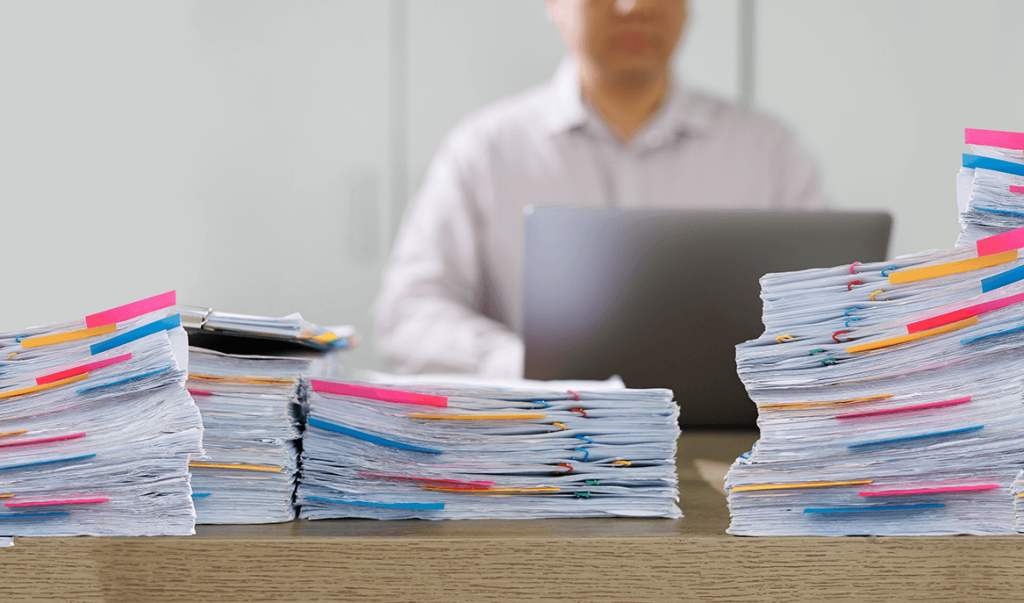
Paper documents tend to pile up faster than most people anticipate. Contracts, receipts, class notes, medical forms, invoices, and printed reports can quickly turn into stacks of paperwork that are difficult to manage. At some point, many people decide to digitize these documents. It might be part of organizing a home office, preparing records for work, or reducing paper clutter. But once the process begins, a common challenge appears almost immediately—how to scan large numbers of documents efficiently, i.e., perform bulk scanning.
Scanning files one by one is slow and repetitive. When you have dozens—or even hundreds—of pages to digitize, the process can become frustrating and time-consuming. Bulk scanning solves this problem. With the right approach and tools, you can scan multiple pages, images, or documents in one continuous workflow and organize them into structured digital files. This guide explains the most common challenges with bulk scanning and shows practical ways to make the process faster and easier.
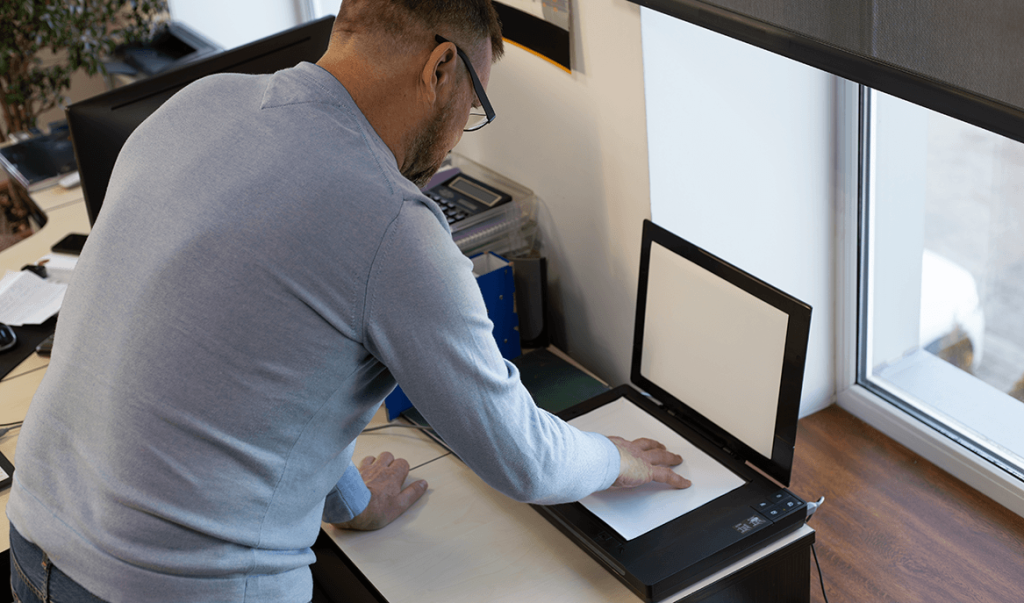
Bulk scanning involves organizing files and preserving quality—all while making the documents usable afterward. As a result, people typically encounter a few common difficulties, starting with large stacks of paper to digitize. Manual scanning also tends to be quite time-consuming, often resulting in poor scan quality or uneven pages. Next comes the difficulty of organizing files afterward, especially considering that the digitized documents aren’t searchable.
Consequently, without a structured approach, digitizing paperwork can take far longer than expected. However, modern mobile scanning tools, such as iScanner, make it possible to streamline the process significantly.
The biggest productivity improvement comes from scanning multiple pages as a single document. Instead of capturing each page individually and managing dozens of separate images, multipage scanning allows you to create one structured PDF containing all related pages. For example, you might scan a multi-page contract, a chapter of a book, a stack of receipts, or several pages of meeting notes.
Using multipage scanning keeps the entire document together and reduces the time spent managing files afterward. With iScanner, you can capture pages sequentially, saving them into a single PDF file. The app detects the borders and adjusts the scan automatically, which helps produce clean and professional results.
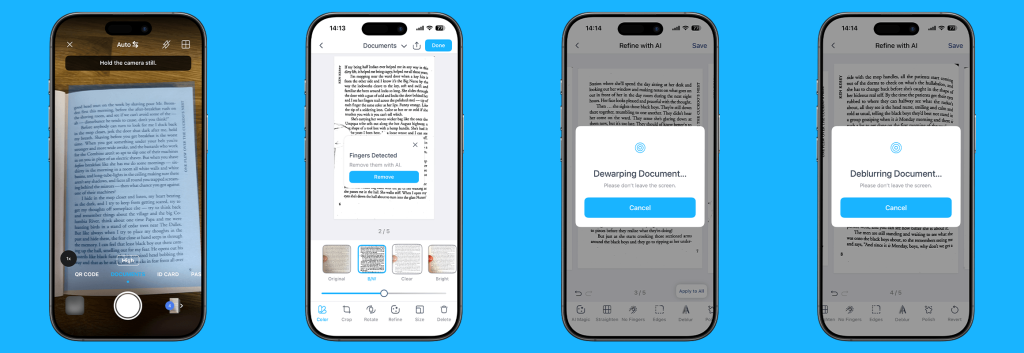
One of the biggest frustrations when scanning multiple documents is inconsistent quality. Pages may appear crooked, shadows may appear along the edges, or parts of the document may be cut off. Fixing these issues manually can slow down the entire workflow.
Modern scanning tools solve this with AI-powered image processing. iScanner automatically detects document edges, removes background noise, and corrects perspective distortions to create clean, rectangular scans. Besides, you can adjust each parameter manually while saving the scans and even run a filter to remove your fingertips if they somehow end up being captured during scanning.
From a user’s perspective, the process is very simple and streamlined:
The result is a document that looks as if it were scanned using professional office equipment despite being captured with a smartphone.
Making documents digital is just the beginning. The real value comes when those documents become searchable and editable. If you scan large numbers of pages without text recognition, you may end up with a collection of image-based PDFs. While they look correct visually, they cannot be searched or copied.
Optical Character Recognition (OCR) solves this problem. OCR technology analyzes scanned pages and converts printed text into digital text. With iScanner, OCR supports about two dozen languages and can extract text from books, receipts, printed documents, and even hand-written notes with high accuracy.
Once OCR is done, you can look for any pieces of content or keywords, copy text into other files, and, if needed, convert scans into editable formats. For large document collections, the OCR feature makes information much easier to retrieve later.
When digitizing hundreds of pages, organization becomes just as important as scanning speed. A common mistake is scanning everything into one large folder and planning to organize it later. In reality, this usually creates additional work. A better approach is to organize documents during the scanning process, which allows you to create dedicated folders, use consistent naming conventions, and group related pages into single PDFs immediately.
iScanner includes built-in document management features, such as automatic file naming, that help structure your files immediately after scanning. You can reorder pages, merge documents, or split files into separate sections if needed. This ensures your digital archive stays organized from the start.

Traditional scanning often depends on office equipment. Large scanners can handle stacks of paper quickly, but they also require dedicated space and access to the office. Mobile scanning changes this completely. With iScanner, your smartphone becomes a high-precision scanner capable of capturing documents in seconds.
It allows you to digitize documents in many situations, be it during remote work, while on the go, in meetings and classrooms, or while organizing personal paperwork. Files can then be exported as PDFs or images and shared however you want. Ultimately, instead of waiting to reach the office scanner, you can capture documents whenever they appear.
Bulk scanning projects often begin with a major goal: reducing physical clutter. Stacks of paper take up space and make information more difficult to find than necessary. By digitizing documents, you create a searchable archive that is easier to store and maintain. Digital files also provide several advantages, such as easier backups and secure storage, faster document sharing, and reduced reliance on physical filing systems.
Over time, maintaining a digital workflow can significantly simplify document management. For many people, bulk scanning becomes the first step toward building a more organized, paper-light environment, which is both efficient and sustainable.
Bulk scanning may sound intimidating, but with the right approach, even large stacks of paperwork can be digitized quickly and efficiently. All you need is to stick to a proven plan, which includes saving scanned pages as a single document, using AI tools to improve scan quality automatically, applying OCR to make a document searchable, organizing files as you go, and using flexible tools that work anywhere.
iScanner combines these capabilities into a single mobile solution, turning your phone into a powerful document scanner and manager. So, whether you are digitizing business paperwork, organizing study materials, or decluttering your home office, bulk scanning becomes much easier when the right tools support your workflow—and you already know the right tool for the job.