

21 may 2026
Mobile document security becomes much more important once your phone starts replacing physical folders and filing cabinets.
You’ve decided to manage your documents digitally with iScanner to reduce paper clutter and keep important files easier to access. Contracts, signed PDFs, invoices, IDs, insurance paperwork, and family records are now stored right on your phone.
A weak password, unsafe sharing link, or outdated device can expose private documents faster than most people expect.
Simple habits like stronger phone locks, safer file sharing, two-factor authentication, and secure backups can help you protect documents on your phone and keep your mobile workflow more secure.
The easiest way to improve mobile document security is to secure the device.
Your phone may already contain contracts, scanned IDs, invoices, tax forms, and other private documents you access regularly. If someone gains access to your device, they may also access personal or business information stored inside your apps.
For better mobile security:
If you leave your phone somewhere, these settings can make it much harder for someone else to open your files.
Working from cafés, airports, or shared coworking spaces often means relying on public Wi-Fi networks, which increases the risk of exposing private files and personal data.
If you need to access confidential documents on the go:
Phone security is only the first layer of protection. It’s also worth checking which apps and accounts can access your files.
An app with unnecessary file access may also gain access to documents you never intended to share outside your phone.
Take a few minutes to review:
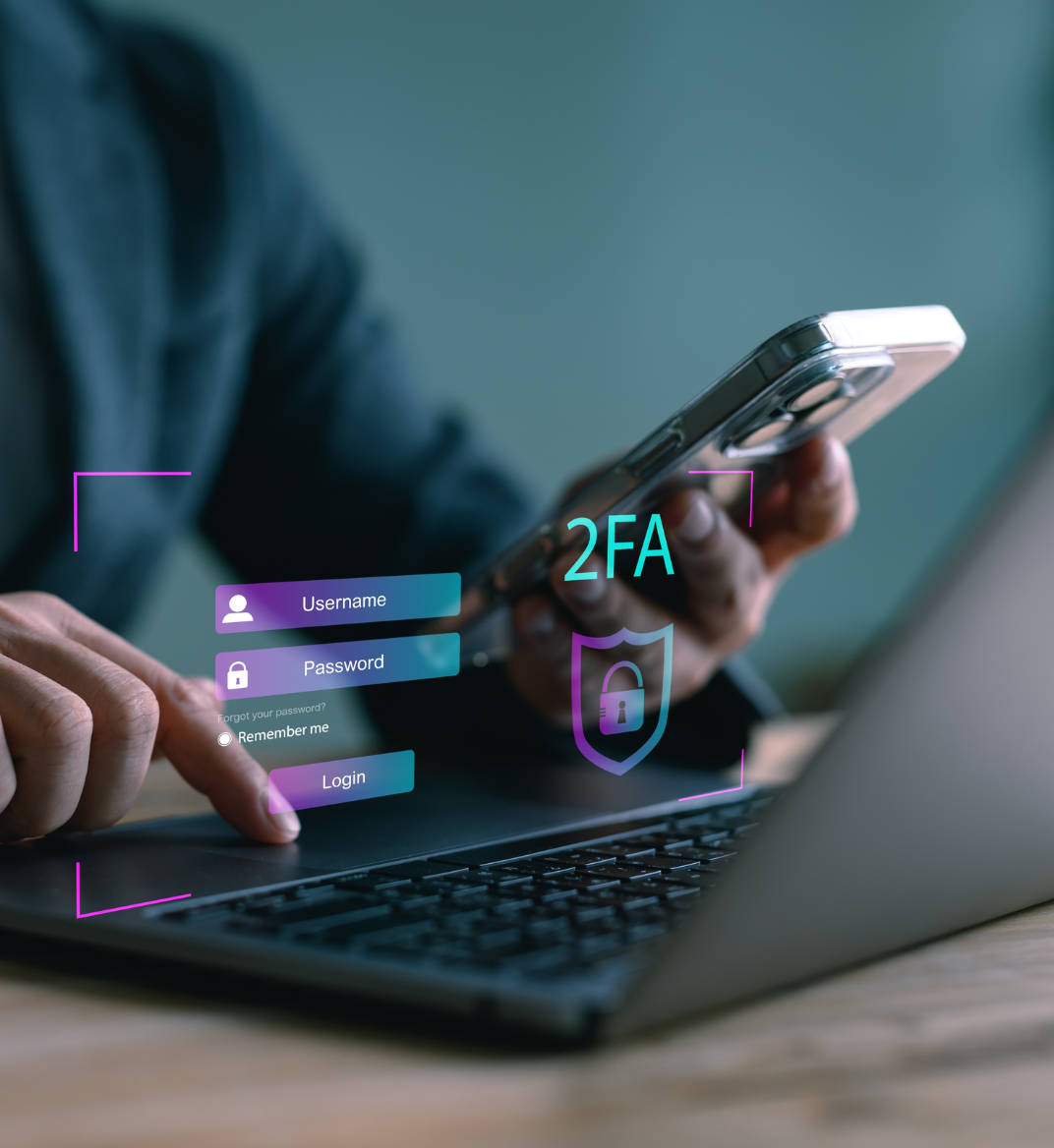
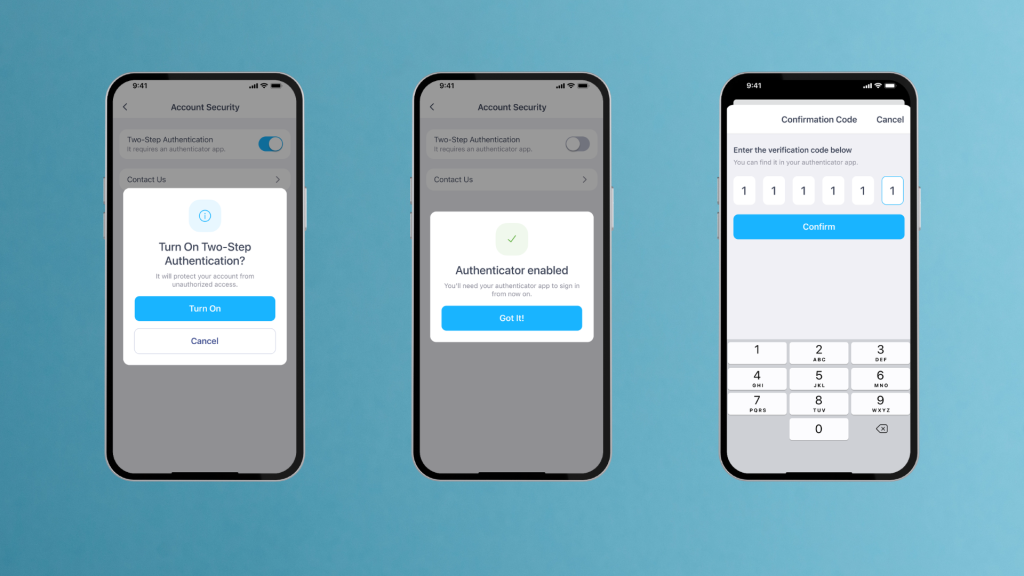
For documents synced across multiple devices, two-factor authentication can make account access more secure.
Security features like 2FA are becoming more important for everyday document management. In fact, 58% of Americans consider two-factor authentication the most valuable feature for storing digital documents.
With two-factor authentication (2FA), entering your password is only the first step. You’ll also verify your identity with a confirmation code or trusted device before accessing your account.
iScanner’s new two-factor authentication feature helps protect your documents, and personal data, especially if you manage confidential information from your phone.
Even well-protected documents can become vulnerable during file sharing.
Sending documents from your phone is convenient, but sharing files without extra protection can expose private information much faster than expected.
Before sending confidential documents:
If you share documents regularly, it’s also helpful to control how long links stay active. In iScanner, you can set a custom expiration time for shared links, so private documents don’t remain accessible longer than necessary.
Storing everything in one place can make mobile document management harder to organize securely.
Separating important documents can help reduce confusion and limit accidental file sharing.
For example, you can create separate spaces for:
Separating work and personal files also makes it easier to see which documents are shared, backed up, or connected to other accounts.
Protecting documents on your phone works best when security becomes part of your everyday routine.
Your phone, scanning apps, and cloud storage services receive regular updates that improve privacy, fix bugs, and patch security vulnerabilities. Delaying updates for too long can leave private files more exposed to security risks.
To keep your mobile workflow more secure:
Backups become especially useful if your phone is lost, damaged, or replaced. Secure backups can help you recover contracts, IDs, receipts, and other important files much faster.
The easier your documents are to organize securely, the easier it becomes to manage everyday paperwork with confidence.
Use strong passwords, Face ID or fingerprint locks, two-factor authentication, and secure cloud backups to protect confidential files on your phone.
Two-factor authentication (2FA) adds an extra verification step when signing in to your account. After entering your password, you’ll also confirm your identity with a code or trusted device.
Once enabled, your account and scanned documents receive extra sign-in protection.
Yes. Both iPhone and Android devices support private or locked folders for sensitive files and photos. This adds another layer of mobile document security.
Use strong passwords, keep your phone updated, enable Face ID or fingerprint authentication, and turn on two-factor authentication. You should also avoid suspicious links, fake cloud-sharing emails, and unexpected download requests.